This page covers the human sign-in path: GitHub login, email verification and the separate consent screen a harness uses. The goal is a verified human account that can sign the Master Agreement and reach the dashboard.
Before you start
- A GitHub account you control.
- Access to the email address on that GitHub account.
- A browser that accepts first-party cookies for
agentregistrar.dev.
Sign in with GitHub
- Open the portal sign-in page.
- Select Continue with GitHub.
- Approve the GitHub authorization request.
- Return to the portal. A first sign-in creates the human account; there is no separate signup form.
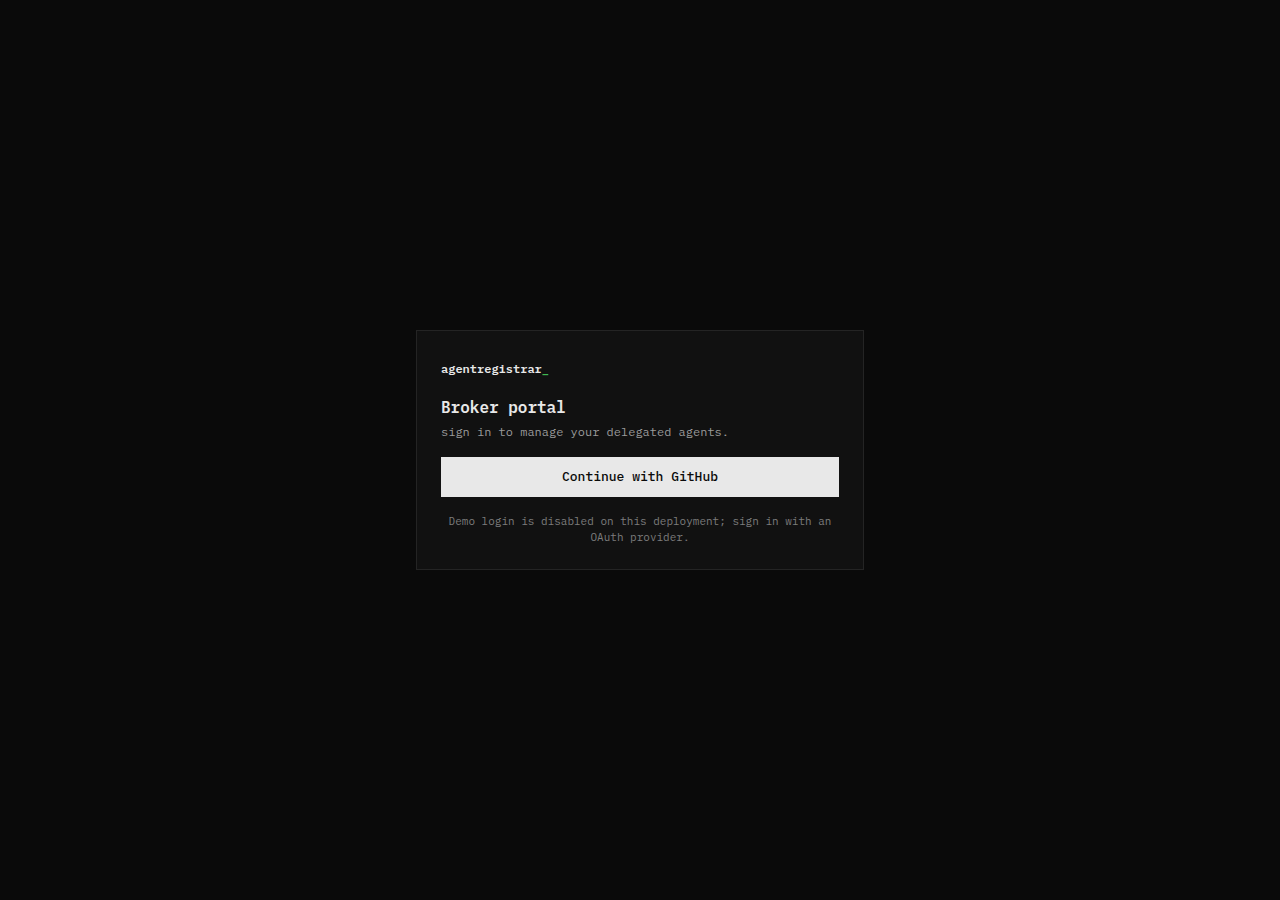
GitHub is the only human login provider in the current portal. If your organization blocks GitHub OAuth, the portal cannot sign you in until that policy changes.
Verify your email
After the first GitHub sign-in, the portal sends a six-digit code to the email address on the account and opens the verification screen.
- Open the message from the broker.
- Enter the six-digit code.
- Select Verify email address.
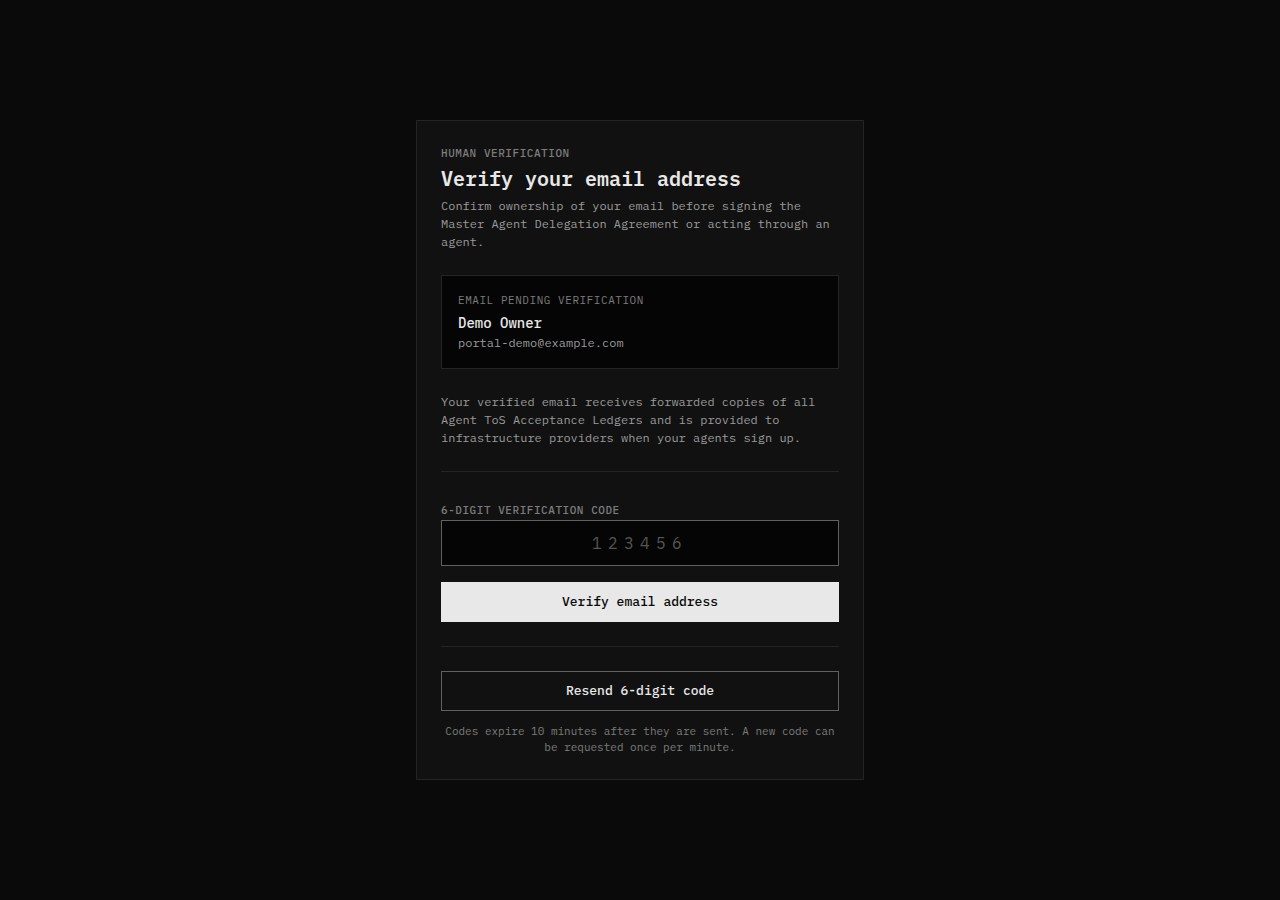
The current rules:
- The code is six digits.
- A code expires ten minutes after it is sent.
- A new code can be requested once per minute.
- Five failed attempts lock the current challenge. Request a new code after a lock.
- The screen shows the email address awaiting verification. If it is wrong, sign out and use the correct GitHub account.
Verification is required before signing the Master Agreement and before any agent can act for you.
If the code does not arrive
- Check the spam or quarantine folder for the address shown on the screen.
- Wait for the one-minute cooldown, then select Resend 6-digit code.
- Confirm the address on the screen matches the mailbox you are reading.
- If your mail gateway blocks the sender, use an address that accepts the broker's mail. The portal does not offer a second verification channel.
Sessions and sign-out
The portal keeps the session in first-party cookies. Sign out in the header clears the session and returns you to the sign-in page. The docs do not publish a fixed session lifetime; treat a shared browser as a shared account and sign out when you are done.
Common problems
| Symptom | Cause | Fix |
|---|---|---|
| Signed in as the wrong person | The browser reused a GitHub session | Sign out of the portal, sign out of GitHub, then sign in again |
| Redirect loop between GitHub and the portal | Cookies are blocked or a stale callback is cached | Allow first-party cookies for agentregistrar.dev, clear the site data, retry |
| GitHub login rejected by an organization | The organization restricts OAuth apps | Use a personal account or ask the organization to allow the app |
| Verification code rejected | The code expired, was already used, or the challenge locked | Request a new code and enter it within ten minutes |
Human login and harness consent are different
Human login proves who you are. A harness consent request asks whether a specific MCP client may act for you.
When a harness starts its OAuth flow, the portal opens a consent screen that shows:
- The requesting client and its loopback callback host.
- The scopes the harness requests:
mcp:tools,tos:acceptandsignup:free_tier. - The verified human owner the delegation would attach to.
- A Master Agreement status line.
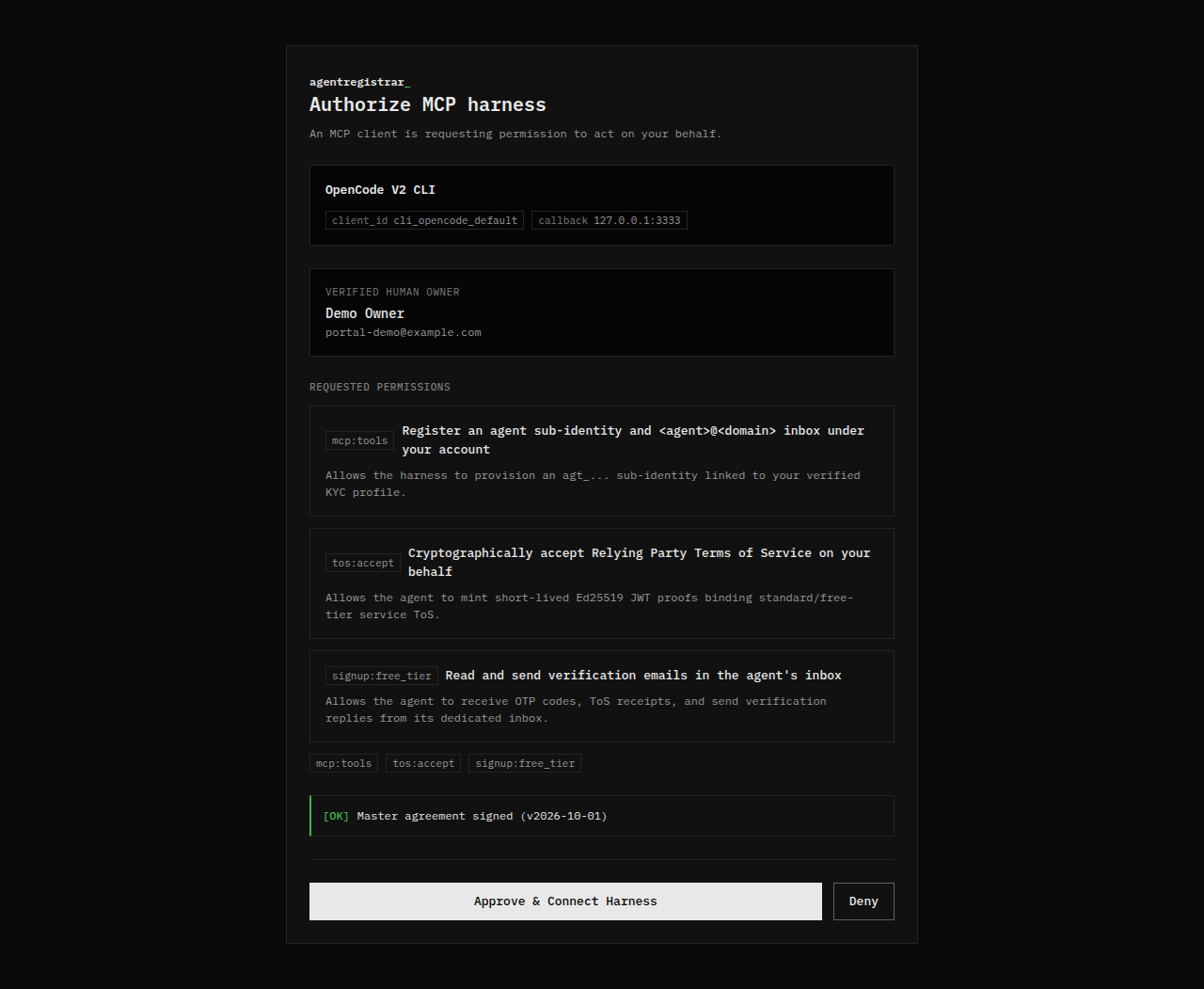
Approve & Connect Harness completes the request and returns the browser to the harness callback. Deny returns an access-denied result to the harness. If the Master Agreement is unsigned, the consent screen includes the signing gate and does not approve until the agreement is signed.
The consent screen is not a second signup. It delegates authority to a client under the human account that already exists. The requested scopes and the delegation claims are defined under Protocol; the MCP tool surface is listed under Reference. Harness installation guides are being added under Agents & harnesses; until they land, use the command shown on the dashboard.
Verify
You are done when the dashboard loads, the account panel shows VERIFIED, and it also shows a signed Master Agreement version. If the dashboard redirects back to verification, the email is still unverified. If it redirects to the agreement, the email is verified but the agreement is unsigned.
Next step
Read Master Agreement before signing, then continue to Dashboard.